How to export an appointment file from Medesync
To export an appointment file from Medesync, you simply need to create a custom report. Here's how:
#1 – Create a Custom Report
Print > Custom Reports Create a new custom report
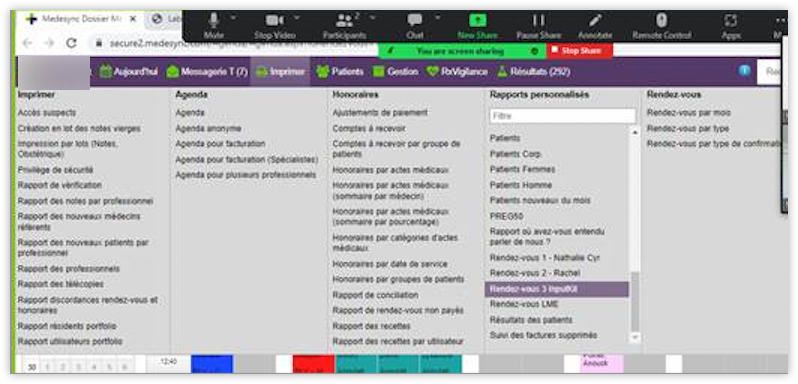
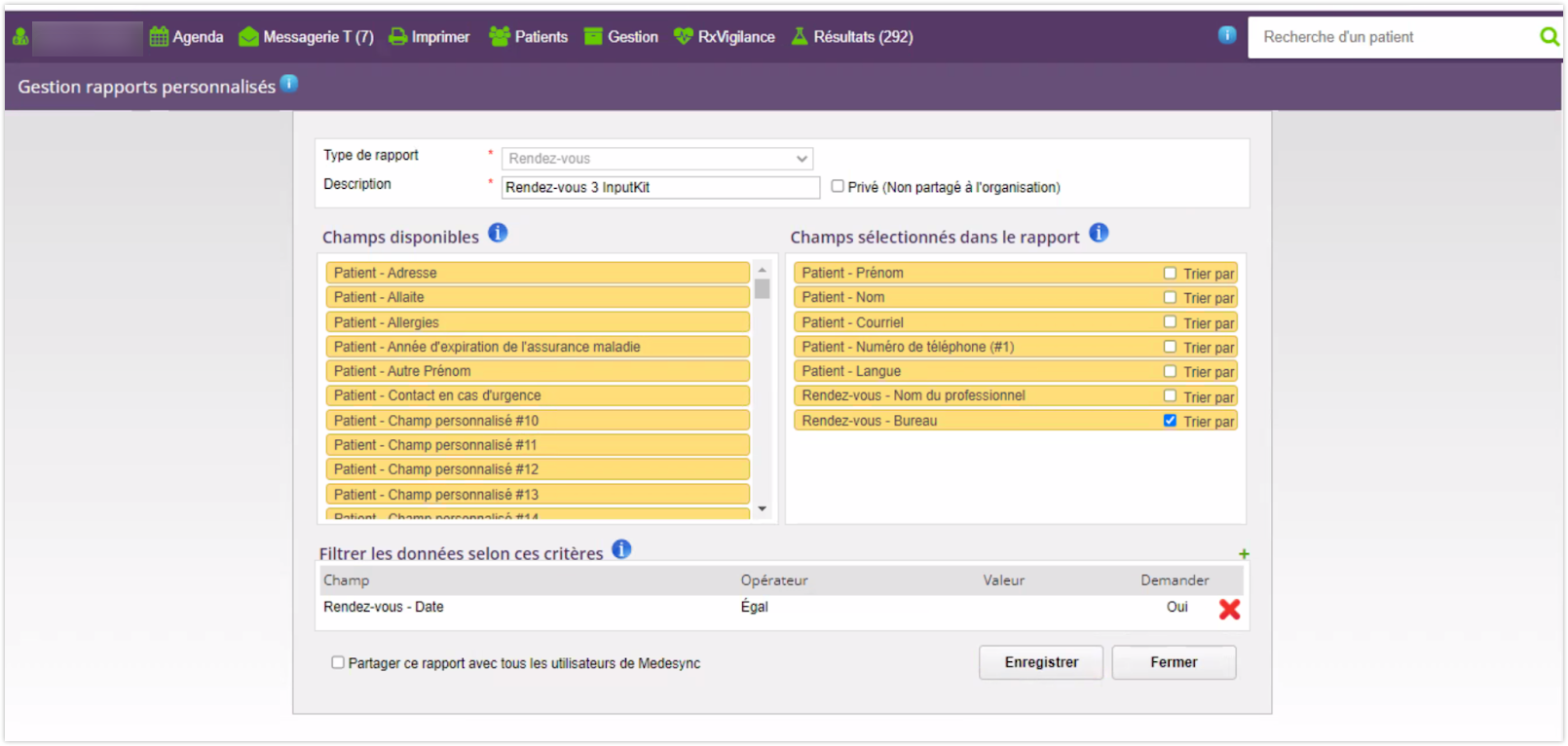
Fill in the following fields:
Report Type: Appointment
Description: Appointments for InputKit
Fields:
Patient – First Name
Patient – Last Name
Patient – Email
Patient – Phone Number
Patient – Language
Appointment – Professional's Name
Appointment – Office
Filter: Depending on your sending frequency, filter by appointment date Example: If you send once per week, filter for appointments from the last 7 days
#2 – Import the file into InputKit
Once your file is generated, here’s how to import it into InputKit:
https://help.inputkit.io/en/articles/4418030-how-to-import-a-csv-file-to-send-multiple-questionnaires
How to exclude canceled appointments from the report
If you want to exclude canceled appointments from your Medesync export, you can use a simple condition while configuring the data filter.
Steps to follow:
In the Medesync interface, while setting up your report:
Add a condition of the type: Do not include if contains → Field: Type → Value: APPOINTMENT – NOTES
Enter the keyword:
annulation
This will automatically exclude all contacts linked to appointments containing the word "annulation".
Do not hesitate to write us on the chat if you have any questions.